
Ventoy
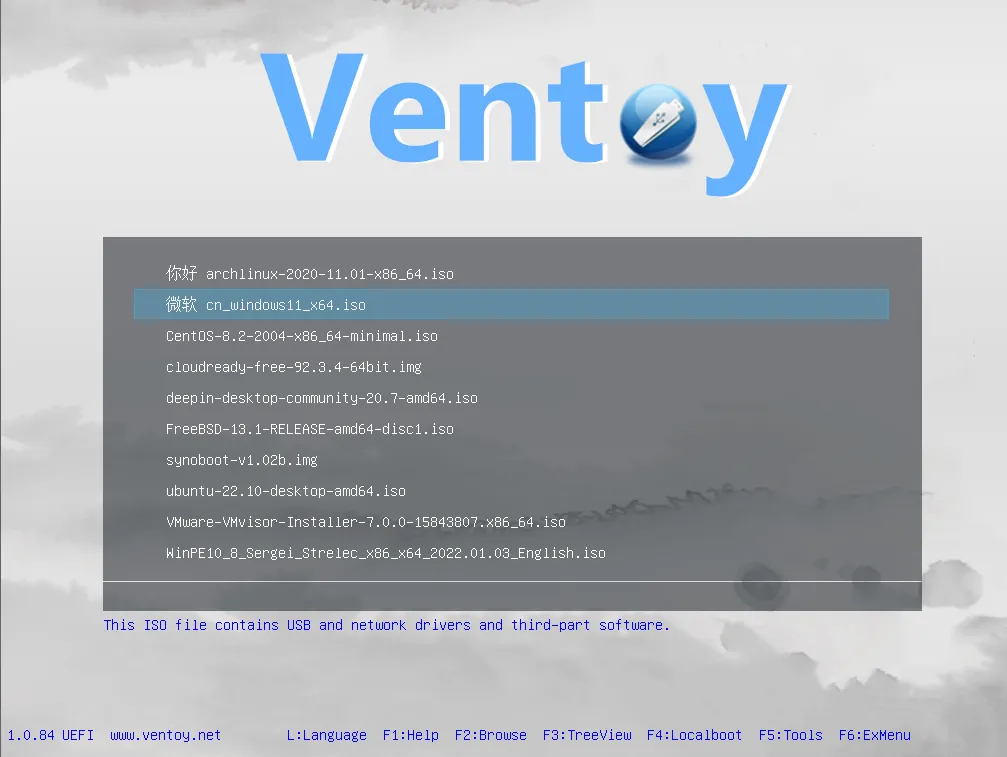
Open source tool that turns one USB drive into a multi-boot stick. Copy several ISO, WIM, IMG or VHD files onto it and pick one at boot.
What it does
- Boots many ISO, WIM, IMG and VHD files from one drive, chosen from a menu
- Lets you add and replace images by copying files, without reformatting
- Supports UEFI and legacy BIOS on the same stick
- Offers a Secure Boot key enrolment option for images that need it
Ventoy installs a small boot loader on a USB drive. After that, you copy image files onto the drive like normal files, and the boot menu lists them. You do not need to reformat the stick each time you change its contents.
Who it is for
Ventoy suits a technician who visits sites and needs one stick for several jobs: a Windows installer, a Windows PE repair image, a Linux live system and a memory test. For a single image, Rufus is simpler.
Install and first run
- Download Ventoy from the official download page and extract it to a folder.
- Back up anything on the USB drive. Installing Ventoy erases the drive.
- Run
Ventoy2Disk.exeas administrator, select the drive, and click Install. - Open the new Ventoy partition in File Explorer and copy in your image files.
The step-by-step process, including testing each image, is in the multi-ISO rescue guide.
Practical notes
- Keep file names clear, for example
win11-22h2-x64.iso, so the menu is easy to read. - Store a text file on the drive with each image’s version, checksum and date.
- Test every image on the hardware you support. Some images fail only with Secure Boot on.
Common tasks
Questions and answers
Does Ventoy erase the USB drive?
Yes, installing Ventoy on a drive erases it. After installation you can add and remove images by copying files, and the drive is not erased again.
Can I use a large Windows ISO?
Yes. Copy the ISO to the exFAT partition. Ventoy reads it directly, so there is no need to split or extract it.
Why does a Windows image fail to boot with Secure Boot on?
Some third-party images use boot loaders that are not signed for Secure Boot. Test each image on your hardware, and see the Secure Boot guide before you change firmware settings.
Is Ventoy suitable for a company?
Yes, for technicians who need several tools on one stick. Keep a checksum list for every image, and limit the images to ones your policy allows.
Guides that use Ventoy
- Build an Admin Toolbox USB: Ventoy and Rufus TogetherHow to plan a field toolbox USB that combines Windows installers from Rufus with a Ventoy menu of rescue and diagnostic tools.
- Rufus or Ventoy: Which USB Tool Should an Admin Use?A practical comparison of Rufus and Ventoy for Windows administrators: when a single-ISO stick is better, when a multi-ISO stick saves time, and how to choose.
- Secure Boot and USB Media: What Breaks and How to Fix ItWhy a Rufus or Ventoy stick may be refused when Secure Boot is on, and how to test, fix or work around the problem safely on corporate PCs.
- Build a Multi-ISO Rescue USB with VentoyHow to set up one Ventoy USB drive that boots several ISO files, from Windows installers to Linux live systems and diagnostic tools.
- Put a Windows PE Repair Environment on VentoyHow to add a Windows PE (WinPE) image to a Ventoy stick, so that you can repair, image and recover PCs when Windows will not start.