
WinMerge
Open source tool that compares and merges text files and folders side by side, highlighting every difference before you deploy a change.
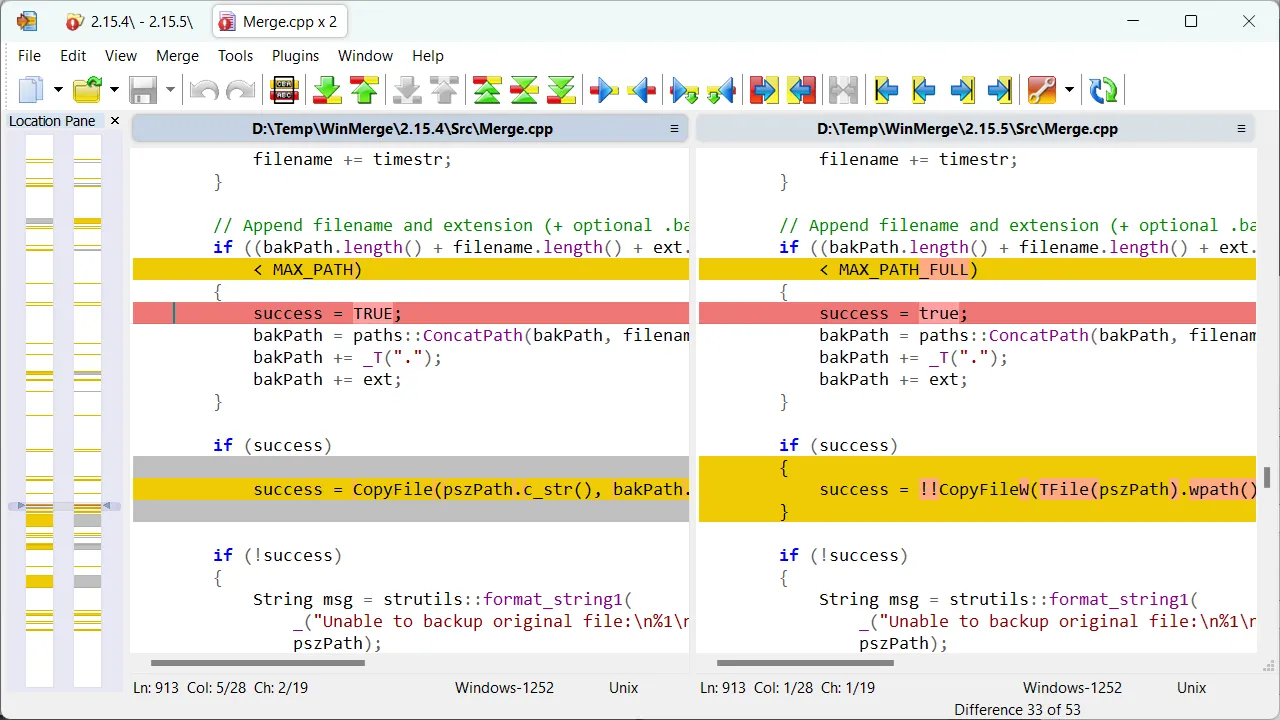
What it does
- Side-by-side comparison of files with highlighted differences
- Folder comparison that lists added, removed and changed files
- Merge tools to copy selected changes from one side to the other
- A location pane for jumping between differences in long files
WinMerge shows exactly what changed between two files or two folders. It is a practical way to review configuration files, scripts and exported reports before you deploy a change.
Who it is for
WinMerge suits anyone who edits text configuration on Windows: script authors, Group Policy reviewers and administrators who keep dated copies of settings. It works without a server.
Install and first run
- Download the installer from the official downloads page and run it.
- Choose File → Open and select the original file on the left and the new file on the right.
- Review each highlighted block. Use the arrows to move between differences.
- Use the merge arrows to copy only the lines you intend, then save the merged file under a new name.
The process, with safety steps, is in the configuration comparison guide.
Practical notes
- Compare folders to review a whole deployment at once, such as a test copy against production.
- Keep a dated copy of the original before you merge, so you can roll back.
- Check encoding and line endings when a diff looks wrong. Most surprises come from these.
Common tasks
Questions and answers
Why does every line show as changed?
The two files probably use different line endings, such as Windows CRLF and Unix LF, or one has a different encoding. Check the status bar in WinMerge and convert one copy before you compare.
Can WinMerge compare Word or PDF files?
WinMerge is built for text files. Use it for scripts, configuration, XML and CSV. Binary files show only as different, without a readable diff.
Does WinMerge change files when I just compare them?
No. Comparing is read-only. Changes are made only when you use a merge action and save.
Can I use it for Group Policy exports?
Yes. Export both versions as XML or text with the same report type, then compare them. See the GPO export guide for the commands.
Guides that use WinMerge
- Review and Upload Scripts to Linux with WinMerge and WinSCPA review-then-upload workflow for deploying configuration and scripts to Linux servers: compare locally with WinMerge, then transfer with WinSCP.
- Compare Configuration Files Safely with WinMergeA careful process for comparing two versions of a configuration file with WinMerge, so that you change only what you intend and can roll back.
- Compare Network Scans Over Time with WinMergeHow to export two Advanced IP Scanner results and use WinMerge to see which devices were added, removed or changed between scans.
- Review Group Policy Exports with WinMergeHow to compare two Group Policy Object exports as text, to see exactly which settings changed before a GPO is edited or restored.
- Document Configuration Changes with Side-by-Side ScreenshotsHow to record a configuration change with a WinMerge comparison and Greenshot captures, so that reviewers and auditors can see what changed and why.