
mRemoteNG
Open source connection manager for Windows that keeps RDP, VNC, SSH and other remote sessions in one tabbed window, organised in folders.
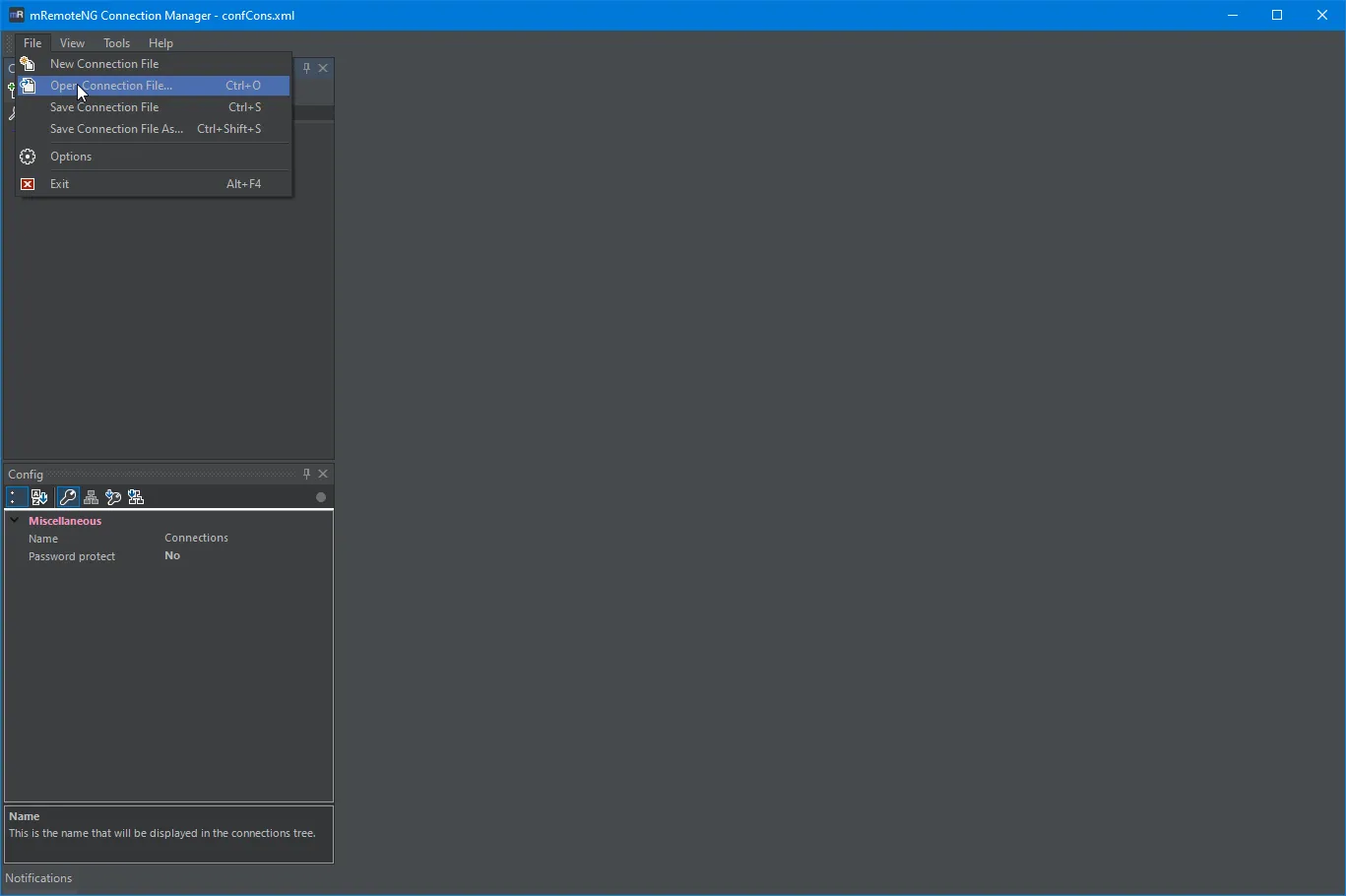
What it does
- Tabbed window for RDP, VNC, SSH, Telnet and HTTP/HTTPS sessions
- Folder tree where settings are inherited from a parent folder
- Connection file that can be protected with a password
- Connection list that can be stored in a database for a shared team setup
- Quick launch of external tools with the current connection's details
mRemoteNG is a connection manager. It does not replace the remote desktop client or the SSH client; it keeps all of them in one window, with a tree of folders and tabs, so you can find a server quickly and see which sessions are open.
Who it is for
It suits an administrator who connects to many servers, network devices and workstations every day. It is less useful if you connect to one or two machines, because the built-in tools are enough.
Set up the first connection file
- Download the installer from the official downloads page and check the version before you install it.
- Create a new connection file and give it a clear name, such as the site or team it covers.
- Create folders for each area, for example Domain controllers, File servers and Switches.
- Set the settings on the folder, such as the user name or the port, so that each connection inherits them.
- Protect the connection file with a password and save it to a location with restricted access.
Keep it tidy
- Put shared settings in the folder, not in each connection, so a change happens in one place.
- Name each connection with the host name, not the IP address, so the list stays readable after a change.
- Remove connections for decommissioned servers the same day they are switched off.
Common tasks
Questions and answers
Does mRemoteNG need a server?
No. The connection list is a file on your PC or a network share. A database option exists for shared team setups, as described in the project documentation.
Is the connection file safe to store on a share?
Protect it with a password in the connection file settings and limit who can read the share. Anyone with the file and the password can see the saved credentials.
Can I use mRemoteNG for a single server?
You can, but for one connection the built-in Remote Desktop client is simpler. mRemoteNG pays off when you manage many servers and devices.
Guides that use mRemoteNG
- Connect to Servers Over SSH and RDP From One WindowHow to use mRemoteNG to open Windows RDP sessions and Linux SSH sessions in tabs, with the right ports, keys and credentials for each.
- Document Remote Access for an Audit With mRemoteNGWhat an auditor will ask about remote administrative access, and how to answer from a maintained mRemoteNG connection list without exposing passwords.
- Organise Remote Connections in mRemoteNGHow to build a folder tree of servers and devices in mRemoteNG, with inherited settings, clear names and a routine that keeps the list current.
- Share One mRemoteNG Connection List Across an IT TeamHow a small IT team can keep one shared list of remote connections in mRemoteNG, with clear ownership, change control and a backup routine.
- Store the mRemoteNG Connection File SafelyHow to protect an mRemoteNG connection file with a password, limit who can read it on a share, and keep saved credentials from spreading.