
Advanced IP Scanner
Network scanner for Windows that lists devices on a local subnet with names, IP and MAC addresses and manufacturers, so you can see what is connected.
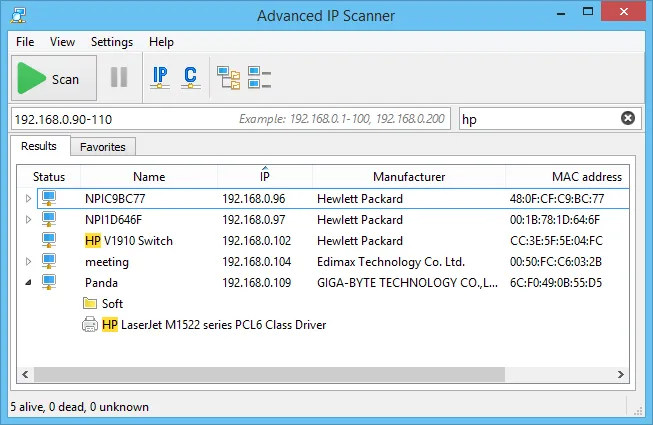
What it does
- Scans an IP range in seconds and lists live hosts
- Shows device names, MAC addresses and manufacturers
- Filters results by any column, such as manufacturer or name
- Exports the results for documentation and later comparison
Advanced IP Scanner shows which devices are on a subnet and what they are. It is useful when you inherit a network without documentation, or when you need to confirm that a new device is where it should be.
Who it is for
Advanced IP Scanner suits an administrator on a Windows PC who needs a quick inventory of one subnet. For monitoring over time, a dedicated tool such as PRTG is a better fit. For detailed port and service discovery, Nmap is stronger.
Install and first run
- Download the installer or portable version from the official site.
- Start the program and enter your subnet, for example
192.168.10.1-254. - Click Scan and wait for the list to fill.
- Sort or filter by manufacturer to find printers, switches and phones.
- Export the list with the date in the file name.
The full procedure is in mapping your network with Advanced IP Scanner.
Reading the results
- Manufacturer points to hardware you may not have in your records.
- Names such as
DESKTOP-xxxxare normal. A name you do not recognise needs a check against the switch port. - Missing devices need follow-up before you assume they have gone.
Common tasks
Questions and answers
Can Advanced IP Scanner be used in a company?
The official site publishes its own licence terms. Check the current terms on the vendor's site before you deploy it across a business, and keep the installer and version under your change control.
Why does a device not show up in the scan?
It may be switched off, asleep, behind a firewall that drops probes, or on a different VLAN. A missing device is not proof that it is gone.
Can I scan a network I do not manage?
No. Only scan networks you are responsible for or have written permission to test. Notify your security team before large scans.
Why does a device show a manufacturer but no name?
The name comes from the device answering name requests. Printers and phones often report only the manufacturer, which is still useful for inventory.
Guides that use Advanced IP Scanner
- Compare Network Scans Over Time with WinMergeHow to export two Advanced IP Scanner results and use WinMerge to see which devices were added, removed or changed between scans.
- Find Unknown Devices on a Corporate SubnetA method for finding rogue or unauthorised devices on a corporate network using scan results, your asset list, and a clear escalation path.
- Map Your Network with Advanced IP ScannerHow to use Advanced IP Scanner to list the devices on a corporate subnet, read their names and manufacturers, and save the results for documentation.
- Document a Network Inventory with Annotated ScreenshotsHow to combine Advanced IP Scanner results with Greenshot annotations to produce a clear network document that a new administrator can follow.
- Inventory Printers and Network Devices in One AfternoonA practical way to build an inventory of printers, switches, cameras and phones using a network scan, a spreadsheet and clear naming rules.